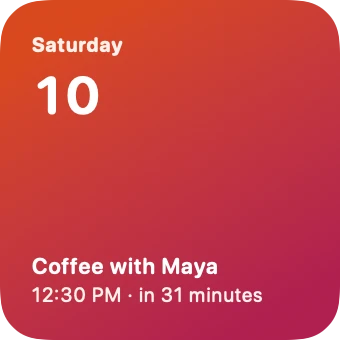
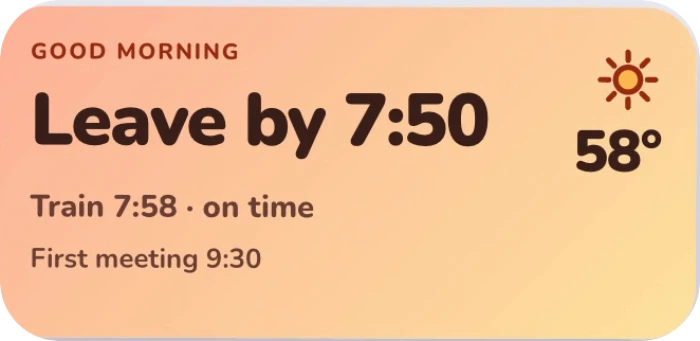
Right widget, right time.
Choose when your widget changes: a new look at night, a different widget at work, a different list each weekday. It happens on the minute, even when the app is not open.
One slot. Three widgets.
Tap a rule to see what the slot shows. In the app you set the hours and the days, and it follows them by itself.
Change anything.
A scheduled change can swap more than the look.
The look
Switch to a dark glass look after 9 PM.
The widget
Show another widget in the same slot. Its own schedule is ignored while it shows.
The parts
Show or hide parts, like work on weekends.
The words
Swap the wording of a field, or leave it empty to keep the usual text.
The data
Another feed, list or link while the change is on. Bring your own data.
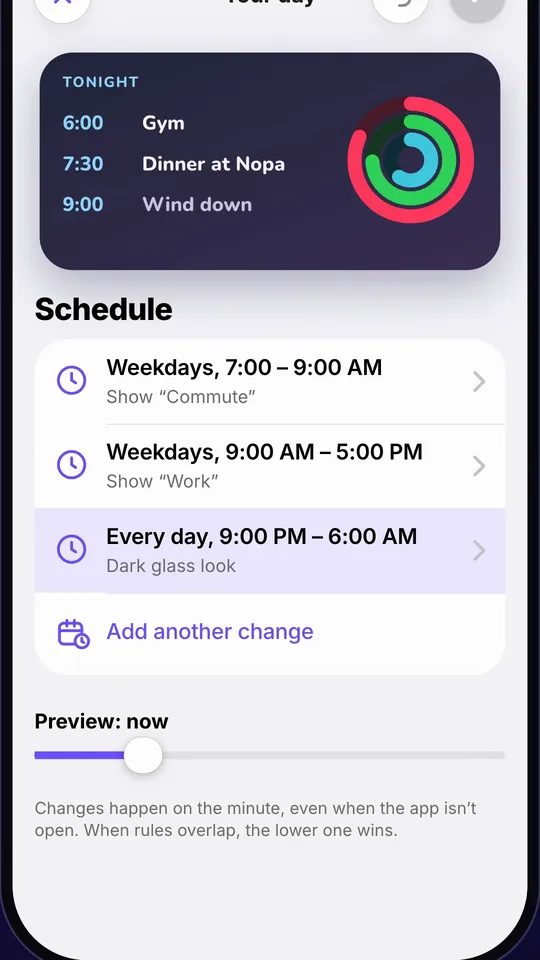
Pick the hours and the days.
Set from and until, choose the days, or make a change last all day for one look on weekdays and another at weekends.
- Weekdays, 7:00 – 9:00 AMShow “Commute”
- Weekdays, 9:00 AM – 5:00 PMShow “Work”
- Every day, 9:00 PM – 6:00 AMDark glass look
Drag the preview slider through the day to see what shows when. When changes overlap, the lower one wins.
Watch the day go by.
Drag the preview and the widget swaps its design and its look. Then it does that by itself, on the minute.
Changes happen on the minute, even when the app is not open.
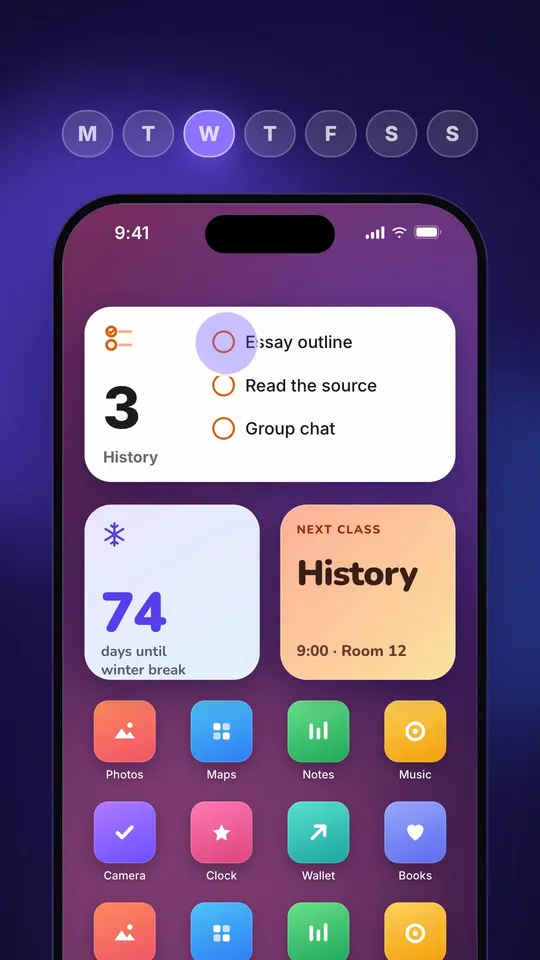
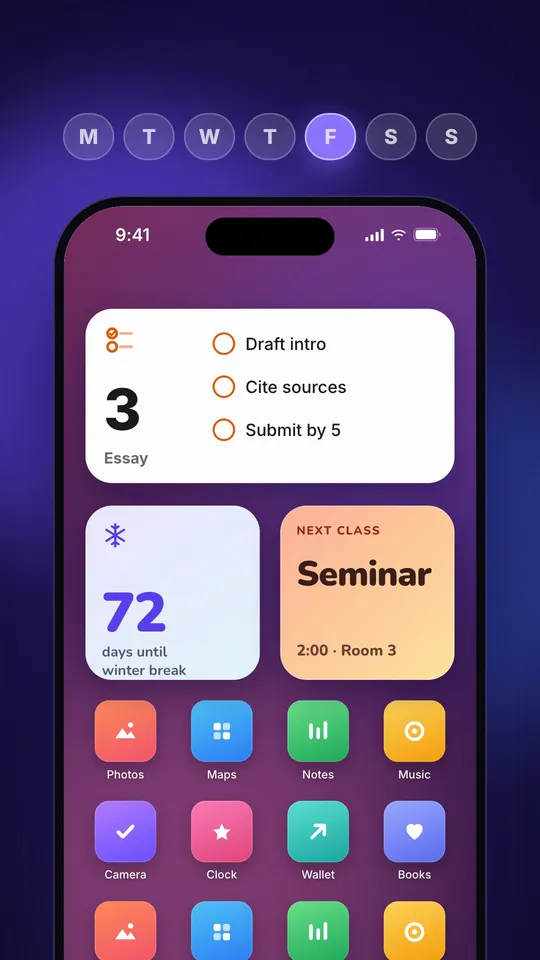
A different list every day.
Pick a setting for each weekday, like which Reminders list to show. Each day starts at midnight, and days you leave on Usual keep the widget's own setting.
- Monday: Math
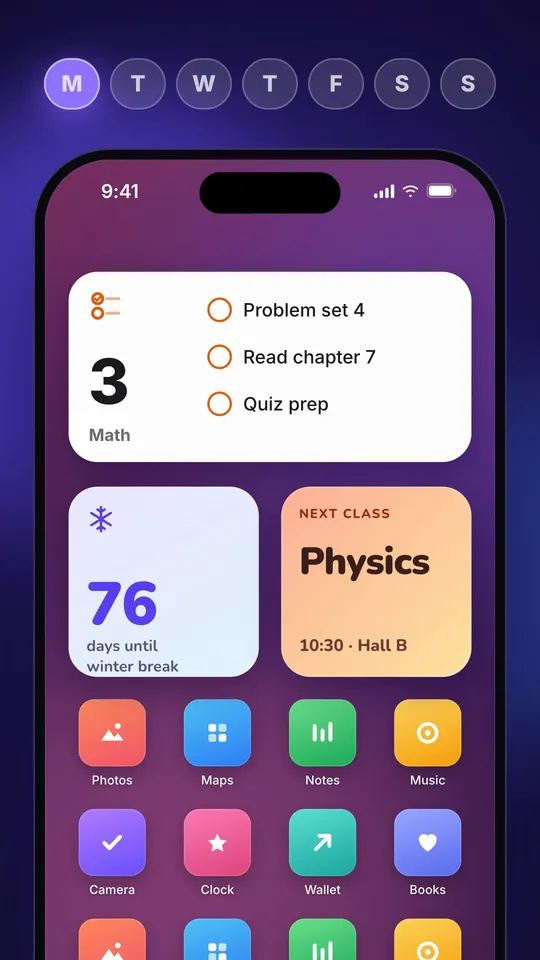
- Wednesday: History
- Friday: Essay
Tasks tick off right from the Home Screen.
Start with one. Add up to seven.
Free widgets get one scheduled change. Homeglass Pro adds up to 7 per widget.
Set it once. It happens.
Coming soon to the App Store. For iPhone with iOS 27 or later.