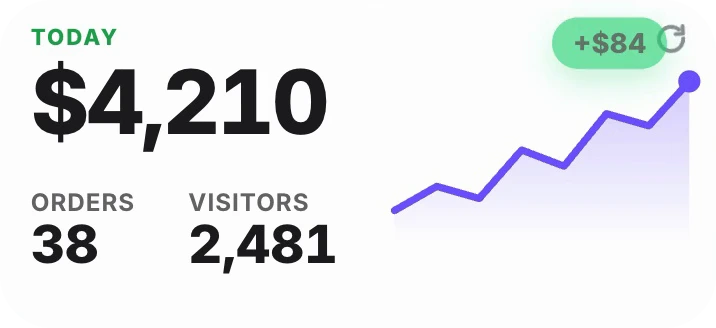
Bring your own data.
Paste a link to anything that answers with JSON or CSV: an API, a spreadsheet, a home dashboard. Homeglass turns it into a widget that updates itself.
From a link to a widget.
Homeglass reads the address, finds every value in the answer, and lets you choose which ones to show.
Use it for a sales spreadsheet, an analytics API or a home dashboard. If it answers with JSON or CSV, it works.
Paste. Test. Tap.
That is the whole setup. Here it is in the app.
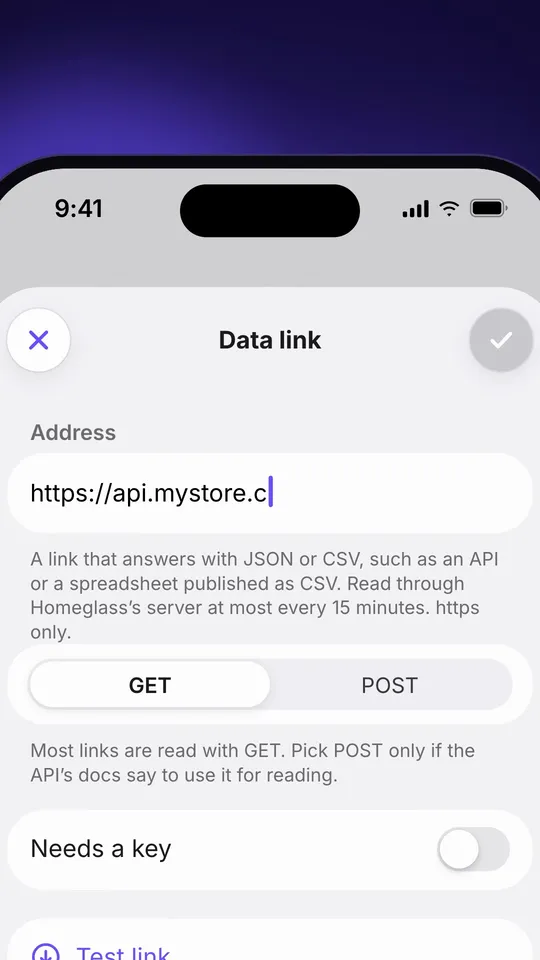
Paste the link
An API, or a spreadsheet published as CSV. https only.
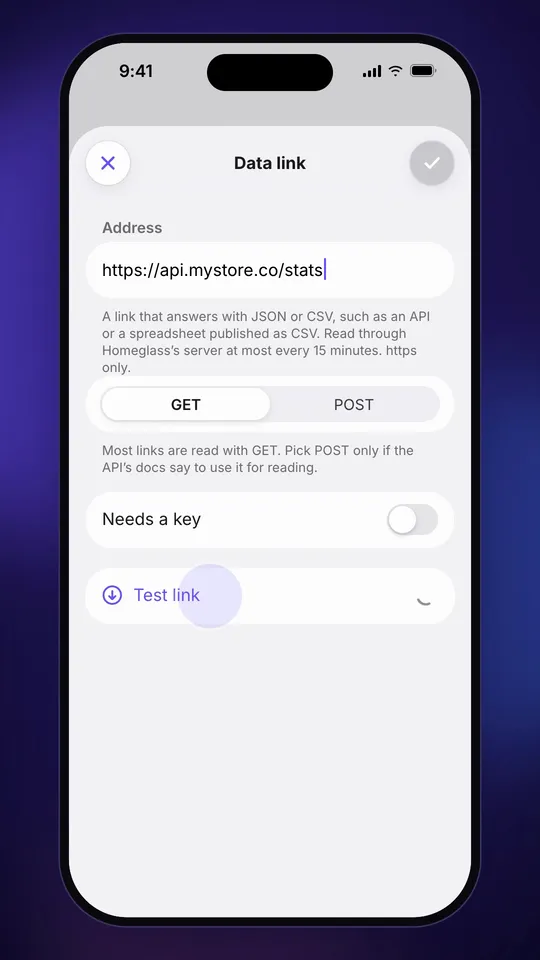
Test it
Homeglass reads the link and lists every value it finds.
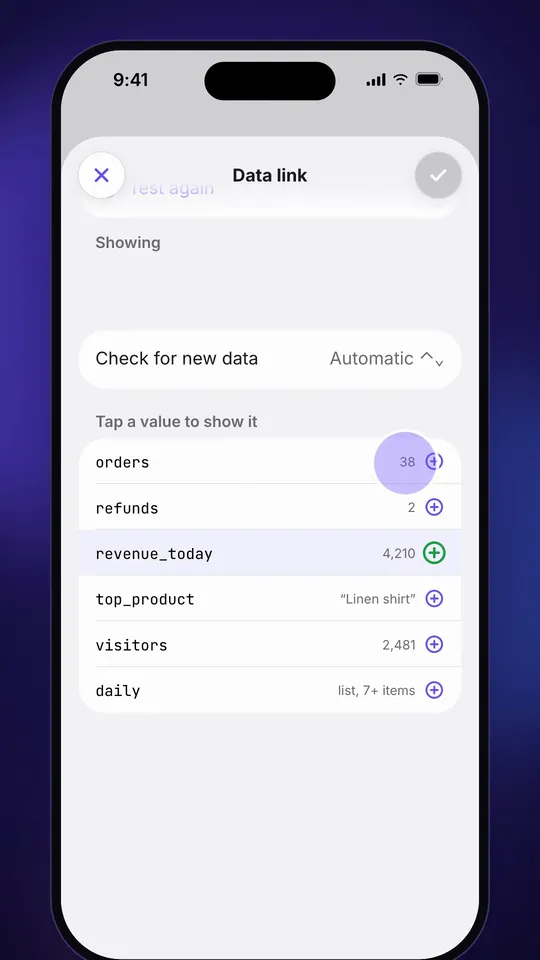
Tap what to show
Lists show their first items. Tap a list to show it as rows.
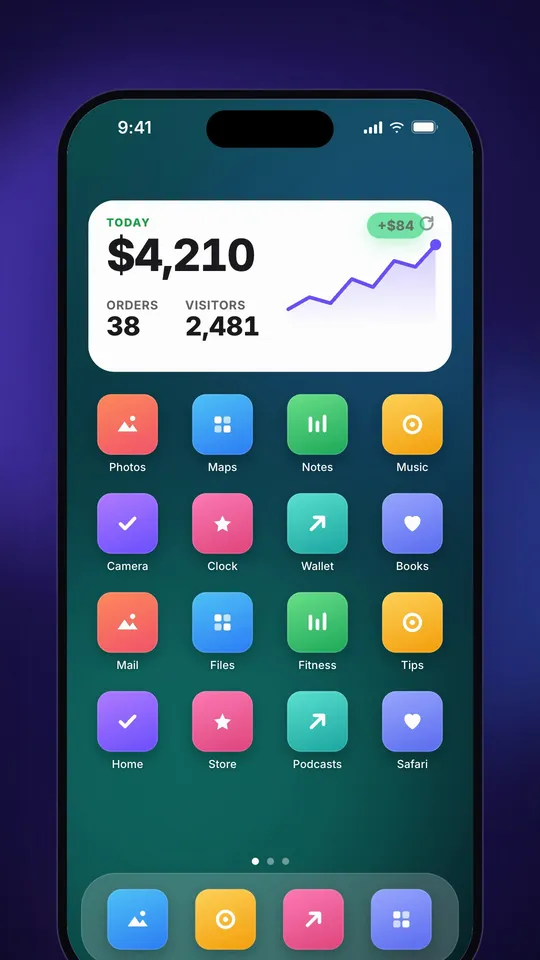
It is on your Home Screen
A live widget that keeps itself up to date.
Show it your way.
Pick a value and it becomes a big number. Add a total or a chart series and it becomes a chart.
Choose how often to check. Match how often your data changes: once a day, at the time it updates, saves calls to your API. iOS decides the exact moment.
Safe by default.
Homeglass's server reads your link for you, so the widget stays fresh without opening the app. Here is what that means for your data.
A key you add is stored encrypted on Homeglass's server and used only for that link. It never appears in the widget, the gallery or anything sent to an AI.
By default the AI sees only each value's name and type, with made-up examples. Turn the option on and the values from your test go to our AI provider to write better labels. Your address and key never do.
Most links are read with GET. POST is there for APIs that need it to look things up, like GraphQL, and never for anything that creates, sends or changes data.
Read the privacy policy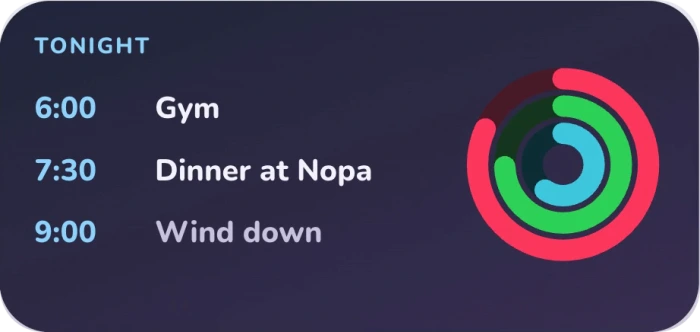
Change the data by the clock.
A schedule can swap in another feed, list or link while a change is on.
Show your store numbers during work hours and something else in the evening. Set it once and it happens on the minute.
How schedules workYour data. Your Home Screen.
Data links are part of Homeglass Pro. Coming soon to the App Store. For iPhone with iOS 27 or later.